
Trae Setup
Trae is an AI-powered IDE by ByteDance that integrates intelligent coding assistance directly into your development workflow. By configuring Trae with Aiberm, you can leverage various powerful models for code completion, chat assistance, refactoring, and generation.
To use Trae with Aiberm, you need a valid Aiberm API key. If you haven’t obtained one yet, please refer to the Authentication page.
What is Trae?
Trae is China’s first AI-native Integrated Development Environment (AI IDE), built on the foundation of Visual Studio Code. It offers:
- Built-in AI Models: Free access to Claude 3.7 Sonnet, GPT-4o, DeepSeek V3/R1, Gemini 2.5 Pro, and more.
- Custom Model Support: Add your own API providers like Aiberm for flexible model selection.
- Full IDE Features: All VS Code capabilities plus AI-powered code completion, debugging, and generation.
- Cross-platform: Available for macOS and Windows (Linux support coming soon).
Configuration Steps
Follow these steps to configure Trae to use Aiberm’s API:
Step 1: Open Model Settings
There are two ways to access the model configuration:
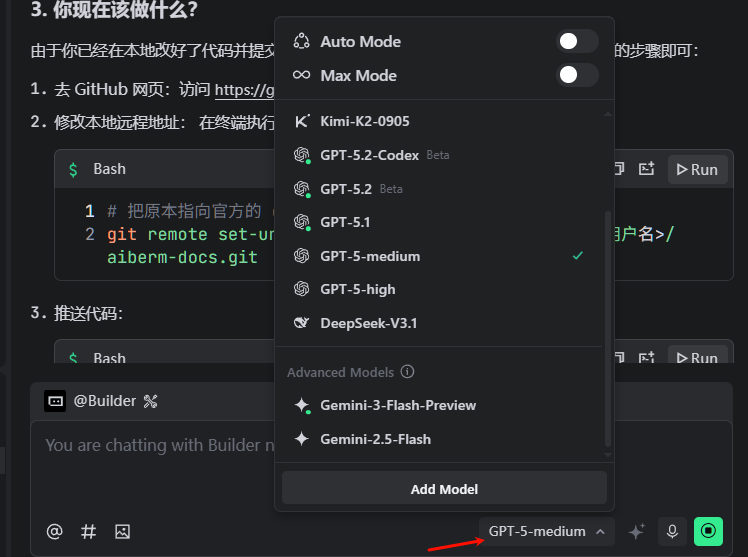
Method A: Via Chat Input Box
- Open Trae IDE.
- Look at the bottom-right corner of the chat input box.
- Click on the current model name to open the model list.
- Click “Add Model” button.
Screenshot 1 (English UI): Chat input box showing the model dropdown and the “Add Model” entry point.
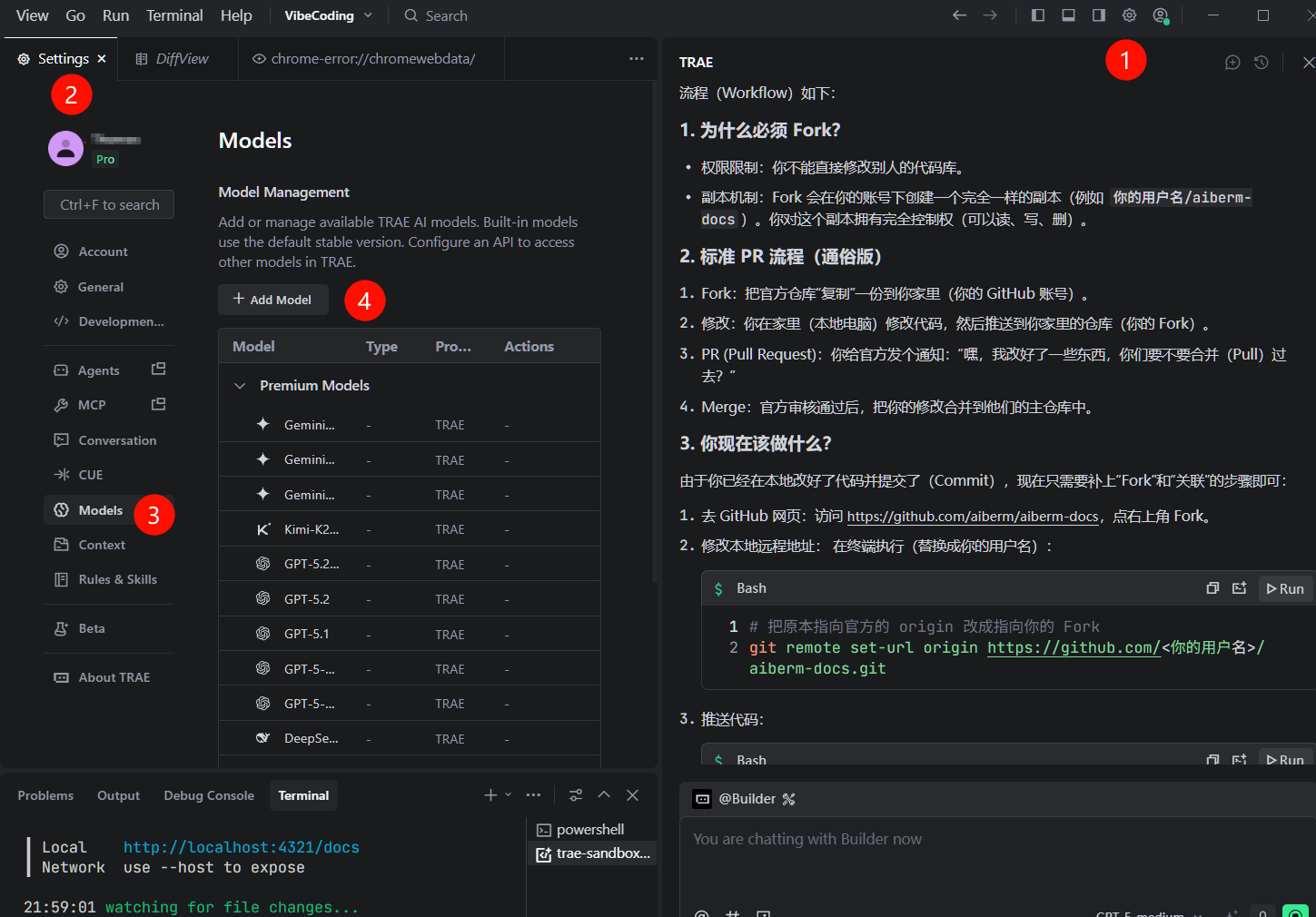
Method B: Via Settings Menu
- Click on your avatar in the top-right corner.
- Select “AI Feature Management”.
- Navigate to “Models” section.
- Click “Add Model” button.
Screenshot 2 (English UI): Settings path to the Models page.
Step 2: Configure Custom Model
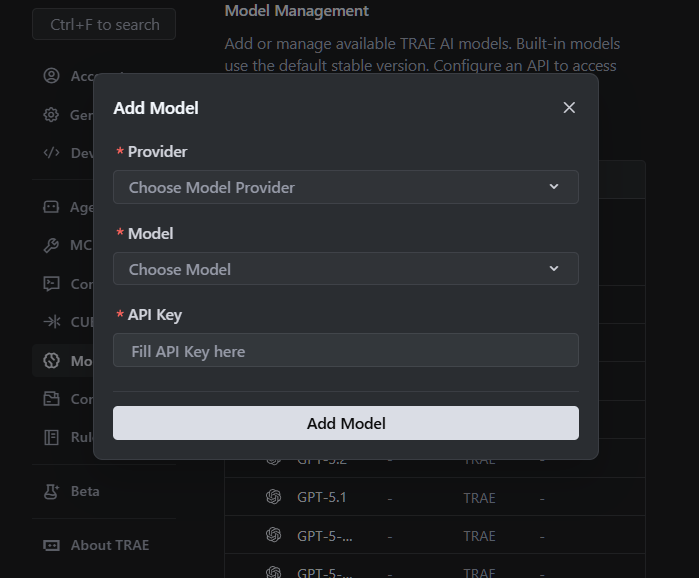
In the “Add Model” dialog, fill in the following fields:
- Provider: OpenAI
- Base URL:
https://aiberm.com/v1 - API Key:
sk-xxxxxxxxxxxxxxxx(Your Aiberm API Key) - Model ID: Enter a supported model ID (e.g.,
google/gemini-2.5-flash,anthropic/claude-3-opus,openai/gpt-4o).
Supported Model IDs (examples):
google/gemini-3-flash- Fast and efficientgoogle/gemini-3-pro- Advanced reasoninganthropic/claude-opus-4-6- Best for complex tasksopenai/gpt-5.2- OpenAI’s flagship model
See the Models List page for all supported models.
Screenshot 3 (English UI): “Add Model” dialog.
Step 3: Save Configuration
- Click “Add Model” or “Save” button to confirm your settings.
- Trae will attempt to verify the connection to Aiberm’s API.
- If successful, your custom model will appear in the model list.
Verification
To ensure that Trae is correctly configured with Aiberm:
- Open the Chat Panel: Click the chat icon on the left sidebar, or use the command palette (
Ctrl/Cmd + Shift + P) and search for “Chat”. - Select Your Custom Model: In the chat panel, click the model dropdown at the bottom-right corner and select the Aiberm model you just added.
- Test with a Simple Query: Ask a coding question, such as:
Write a Python function to calculate the Fibonacci sequence using recursion. - Verify Response: If Trae generates code successfully using your custom model, congratulations! Your configuration is working correctly.
Screenshot: [Screenshot 4: Chat panel showing Aiberm model selected and successful response]
Using Aiberm Models in Trae
Once configured, you can use Aiberm models in multiple ways:
1. Chat Mode
- Open the chat panel and select your Aiberm model.
- Ask questions, request code generation, or get explanations.
- Reference files using
#symbol for context-aware responses.
2. Inline Completion
- Type code naturally, and Trae will suggest completions.
- Press
Tabto accept suggestions. - Note: Custom models may have limited inline completion support depending on Trae’s implementation.
3. Code Actions
- Select code in the editor.
- Right-click and choose AI actions like “Explain”, “Refactor”, “Add Comments”.
- Choose your Aiberm model when prompted.
Troubleshooting
❌ Connection Failed
Symptoms: “Failed to connect to API” or “Network error” Solutions:
- Verify the Base URL is exactly
https://aiberm.com/v1(no trailing slash). - Check your internet connection.
- Ensure your API key is valid and has sufficient credits.
- Try testing the API key using curl:
curl https://aiberm.com/v1/models \
  -H "Authorization: Bearer YOUR_API_KEY"
❌ Invalid API Key
Symptoms: “401 Unauthorized” or “Invalid API key” Solutions:
- Double-check you copied the complete API key without extra spaces.
- Verify the key starts with
sk-. - Ensure your Aiberm account is active and has credits.
- Generate a new API key from the Aiberm Dashboard.
❌ Model Not Found
Symptoms: “Model not available” or “Unknown model ID” Solutions:
- Verify the model ID format is correct (e.g.,
google/gemini-2.5-flash). - Check the Models List page for supported model IDs.
- Ensure the model is available in your Aiberm plan.
❌ Rate Limit Exceeded
Symptoms: “Too many requests” or “Rate limit reached” Solutions:
- Wait a few moments before retrying.
- Check your Aiberm account usage limits.
- Consider upgrading your plan if you need higher rate limits.
Advanced Configuration
Using Multiple Models
You can add multiple Aiberm models with different configurations:
- Repeat the configuration steps for each model.
- Use descriptive names to distinguish them (if Trae allows custom naming).
- Switch between models based on your task:
- Fast models (
gemini-3-flash) for quick iterations. - Advanced models (
claude-opus-4-6,gemini-3-pro) for complex reasoning.
- Fast models (
Model Context Protocol (MCP)
Trae supports the Model Context Protocol (MCP), which allows AI models to access external tools and data sources. When using Aiberm models, you can leverage MCP to:
- Connect to databases.
- Access file systems.
- Integrate with external APIs.
- Use custom tools.
Refer to Trae’s official documentation for detailed MCP configuration.
Best Practices
- Choose the Right Model: Use faster models for routine tasks, and reserve powerful models for complex problems.
- Provide Context: Use the
#symbol to reference relevant files in your chat queries. - Iterate Incrementally: Break down large tasks into smaller steps for better AI performance.
- Review AI Output: Always review and test AI-generated code before committing.
- Monitor Usage: Keep track of your Aiberm API usage to manage costs effectively.
Next Steps
Now that you’ve configured Trae with Aiberm, explore these resources:
- Models List - Discover all available Aiberm models.
- Chat API - Learn about the underlying API.
- Best Practices - Tips for effective AI-assisted coding.
By integrating Aiberm with Trae, you unlock a flexible and powerful coding experience with access to top-tier AI models.